Mosaic Vivarium helps facility managers and investigators make timely, intelligent and cost-saving decisions about laboratory animal resources. Get instant answers on cage density, mating productivity, colony aging, protocol/permit counts, per diems and more. With a secure Mosaic online account, you can take charge today, room-by-room, rack-by-rack, at your pace.
Wednesday, May 4, 2011
New Receiving Cage Cards
These are optimized for the DYMO 30256 stock, landscape orientation.
We can also have investigator phone numbers on cage cards. If you want a customized cage card including phone numbers, different printer stock, different orientation, contact us through the Mosaic feedback link on your account.
Tuesday, January 18, 2011
Browser Caches
The first thing to try is simple: hold your Shift key and press the browser’s refresh button:
put your cursor in the URL address area and then press CNTL-F5.
If that does not work, follow these steps:
- Close all browser windows
- Open browser and login to Mosaic
- Press the “logout” link
- Close all browser windows (again)
- Open browser and login to Mosaic
Wednesday, January 12, 2011
Print Dialogs for Adobe Reader and DYMO Turbo 450
In particular, note:
If you press the "Properties" button, you'll see the second image where "Orientation" is set to "Portrait."
Thursday, July 1, 2010
Connecting the Zebra/Motorola Symbol 4278 Bluetooth Scanner to a Laptop
Update 2019: The LS 4278 has been superseded by the LI 4278 which solves some difficulties with direct Bluetooth connections to computers and tablets. Also, check below for special notes on pairing the LI 4278 with an iPad.
For easiest connectivity, we recommend you purchase a kit containing a cradle which connects via USB to the computer. The scanner then communicates via Bluetooth to the cradle which sits next to the computer and relays the data through USB. This requires no direct Bluetooth connection to the computer.
An example: Amazon LI 4278
However, you can also purchase a charging-only cradle (with power supply) which does not have the USB connection. In this scenario, you need to Bluetooth-pair the scanner directly with the computer. We have found that his works nicely, but there are some tricks to getting the scanner to reliably pair with the computer.
To pair the scanner directly with the computer, scan the following barcodes from the Symbol 4278 Quick Reference Guide in order:
| Page 6 | SET DEFAULTS |
| Page 13 | BLUETOOTH KEYBOARD EMULATION (HID SLAVE) |
| Page 14 | SCAN OPTIONS <DATA>SUFFIX> ENTER |
In most cases, this will work. However, if it does not, then right-click on the discovered scanner icon in the bluetooth devices, choose Properties, click on the services tab, and check the box that enables HID drivers. Your scanner should now pair.
Pairing with an iPad
For the LI4278 there is a newer firmware and pairing procedure that allows you to have a double-click command with the scanner trigger that will bring up the iPad on screen keyboard. Zebra provides detailed instructions here:
Zebra Support - Link LI 4278 to iPad
NOTE: pairing the older LS 4278 with an iPad will interfere with your ability to obtain the on-screen keyboard.

Friday, August 14, 2009
Programming the Symbol LS2208 Barcode Scanner
The scanner comes with a "Quick Start Guide". If you lost yours, you can get a new copy from here (search for your model on the support site).
- Plug the scanner into your laptop computer.
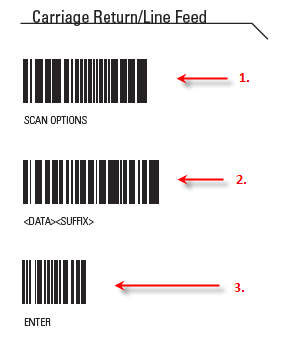
- Find the section of the Quick Start Guide that looks like this:
- Press the trigger to scan the barcode labeled "HID KEYBOARD EMULATION".
- Next, find the section that looks like this:

- Scan these three barcodes in order, 1,2,3.
That's it. The scanner is ready to use.
If you've never used a barcode scanner before, just think of it this way: the scanner is a means of entering a number (series of characters) into the computer without having to type it.
Try this:
- Open Notepad on your computer and put the cursor in the blank space.
- Scan a barcode from a Vivarium cage card.
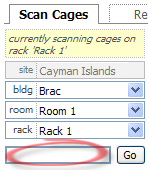
When you are doing a Census with Vivarium, make sure the cursor is in the blue-bordered scan box before you start scanning cage cards.
Wednesday, May 20, 2009
Mobile Computer Setup
Mosaic Vivarium uses a web browser interface to enter data. Therefore, plans must be made for animal facility users to have access to barcode scanners and computers.
The exact quantities of equipment depend on the animal facility's physical layout. For example, some facilities have suites of six rooms within an outer room consisting of a central access hallway. In this case, a mobile station parked in the hallway can be brought into each room on demand. In other cases, rooms are larger, and having a workstation in each room is useful.
Key suggestions:
- Have a conversation with animal facility staff to see and understand how they work.
- Purchase one instance of a commodity equipment setup before committing the entire facility.
- Beware of requests to over-use mobile devices – these are suitable for some operations, but many animal operations require staff to frequently use both hands and only periodically turn to a data entry station. It is useful to have a large form factor data entry station that can be seen from a couple of feet away.
- Laptop Computer
Memory should be 32 GB RAM or more and a display resolution of 1920x1080 or better and a touchscreen is ideal.
You can use a smaller screen, but the ease of visibility is key.
The processor should be equivalent to or better than an Intel Core i5 at 3 GHz.
Also, see Tablet Computers for Mosaic Vivarium.
- Plastic Supply Cart on Wheels ($150 - $300 )
For example, https://www.uline.com/Grp_37/Utility-Carts
NOTE: Not all lab floors are level - consider a cart with wheel locks.Dedicated healthcare workstations are also an option:M38e Computing Workstation - Capsa Healthcare
Medical Cart Workstations for Hospitals & Clinics | Ergotron
- Commodity Label Printer
from vendors such as iDPRT, Dymo, Brother, Zebra...
See Cage Card Printing for more printer options.
See Cost Effective Cage Card Printing for better label choices. - Barcode Scanners
See our complete review of barcode scanner options for Mosaic Vivarium
https://mosaicvivarium.blogspot.com/2012/06/barcode-scanners-for-mosaic.html
- UPS (Uninterruptable Power Supply / Portable Power) ~$210
This is just to run the label printer which cannot run from the USB power alone. Plug the UPS into the wall when the cart is not in use.
https://www.amazon.com/gp/product/B00429N19W
For the CyberPower models, get versions with the LCD display in order to be able to shut off the audible notification when the unit is operating on battery power.
Monday, May 4, 2009
Cost Effective Cage Card Printing
Updated Dec 2011
Mosaic Vivarium generates cage cards as PDF files which you print. A very cost effective printing solution is to purchase a $130 DYMO thermal (black and white) label printer:
You can attach this to the USB port of a laptop on a cart in your facility and print labels one-by-one as needed with no waste of label stock.
The majority of Mosaic Vivarium cage card templates are sized for part number 30256 labels. These are 2-5/16" x 4" (300 labels/roll) and will adhere to a 3x5" index card leaving a border. By using colored index card stock, you can color cue your cage cards by type.
Direct from DYMO is a little expensive.
Here are a couple of sources for lower prices on DYMO 30256 labels. We recommend trying a roll to make sure you are getting the print quality you expect.
https://www.officesmartlabels.com/
https://www.discountthermallabels.com/
Leave a comment for the community on your experiences with these sources.